

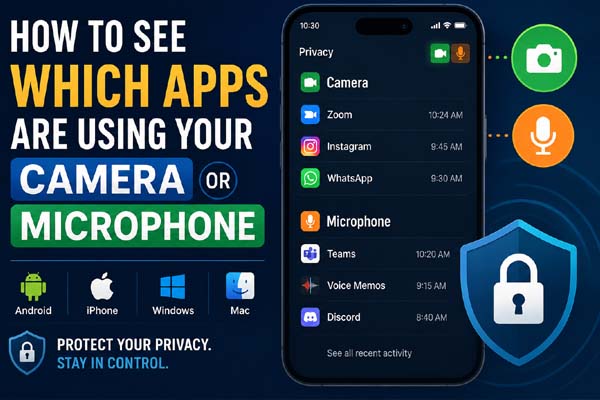
If you want to see which apps are using your camera or microphone, check your device’s privacy settings. Android, iPhone, Windows, and Mac all let you view which apps have permission to access these features, and most also show when an app is actively using them. Reviewing these settings regularly helps protect your privacy and prevents unnecessary access.
Check Camera and Microphone Access on Different Devices
The steps depend on your device and operating system. Use the table below for a quick reference.
| Device | Where to Check | What You’ll See |
| Android 12+ | Settings → Privacy → Privacy Dashboard | Recent camera and microphone access |
| iPhone (iOS 15+) | Settings → Privacy & Security → Camera or Microphone | Apps with permission to access each feature |
| Windows 11 | Settings → Privacy & Security → Camera or Microphone | Permission settings and recent activity |
| macOS | System Settings → Privacy & Security → Camera or Microphone | Apps allowed to use your camera or microphone |
Most modern devices also display a visual indicator when the camera or microphone is currently in use.
Use Built-In Privacy Indicators to Spot Active Access
Your device can alert you when an app starts using the camera or microphone.
- Android: A green privacy indicator appears in the status bar while the camera or microphone is active. Swipe down from the top to see which app is using it.
- iPhone: A green dot means the camera is active (or the camera and microphone together), while an orange dot means only the microphone is being used. Open Control Center to identify the app.
- Windows: Some apps show camera activity through a webcam light, and Windows provides recent usage information in Privacy settings.
- Mac: A green indicator appears when the camera is active, and an orange indicator shows microphone use.
If an indicator appears when you are not intentionally using an app, it’s worth checking which app has access.
Review and Manage App Permissions
Checking permissions is one of the easiest ways to improve your privacy.
On Android
Open Settings → Privacy → Permission Manager, then select Camera or Microphone. You’ll see which apps are allowed all the time, only while in use, or denied access.
On iPhone
Go to Settings → Privacy & Security, then tap Camera or Microphone. Turn off access for any app that doesn’t need it.
On Windows 11
Open Settings → Privacy & Security, select Camera or Microphone, and review which Microsoft Store and desktop apps have permission.
On macOS
Open System Settings → Privacy & Security, then choose Camera or Microphone to enable or disable access for individual apps.
Only grant permission to apps that genuinely require these features.
What to Do If You Notice Unexpected Camera or Microphone Activity
Unexpected access doesn’t always mean your device has been compromised, but it should be investigated.
Here are a few practical steps:
- Close apps running in the background.
- Revoke permissions for apps you no longer use.
- Remove suspicious or unfamiliar apps.
- Update your operating system to the latest version.
- Restart your device if the camera or microphone indicator stays on unexpectedly.
- Run a trusted security scan on Windows if you suspect malware.
Being selective with app permissions significantly reduces privacy risks.
Keep Your Camera and Microphone Secure
Checking which apps are using your camera or microphone only takes a few minutes and is an effective privacy habit. Built-in privacy dashboards, permission managers, and activity indicators make it easy to monitor access across Android, iPhone, Windows, and Mac. Review your permissions regularly and remove access from apps that don’t need it to help keep your personal information protected.
Conclusion
Every major operating system includes tools that let you see which apps can access your camera and microphone. By checking permissions, watching for privacy indicators, and removing unnecessary access, you can better protect your privacy and stay in control of your device.
Need your Wi-Fi password? Follow these simple steps to find saved Wi-Fi passwords on any Android, iPhone, Windows PC, or Mac.
FAQs
How can I tell if an app is currently using my camera or microphone?
Most modern devices display a green or orange privacy indicator when the camera or microphone is active.
Can I stop an app from using my camera or microphone?
Yes. You can revoke camera or microphone permission at any time through your device’s privacy settings.
Why does an app need camera or microphone permission?
Apps such as video calling, photography, voice recording, and messaging apps require these permissions to provide their core features.
Should I remove permissions from apps I don’t use?
Yes. Removing unnecessary permissions is a good security practice and helps reduce the risk of unwanted access.
