

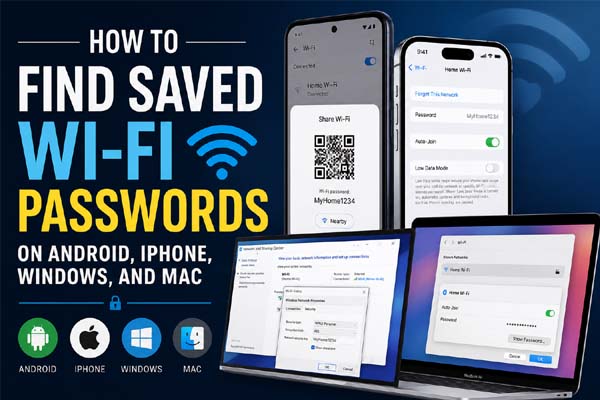
If you’ve connected to a Wi-Fi network before, you can usually view its saved password using your device’s built-in settings. Android, iPhone, Windows, and Mac all provide official ways to find saved Wi-Fi passwords, although the steps vary by operating system and version. The methods below are safe, reliable, and don’t require third-party apps.
Check Which Method Works for Your Device
| Device | Can You View Saved Passwords? | Requirements |
| Android 10 and later | Yes | Unlock the device with your PIN, fingerprint, or face unlock |
| iPhone (iOS 16 and later) | Yes | Face ID, Touch ID, or passcode |
| Windows 10 and Windows 11 | Yes | Administrator access may be required |
| Mac (macOS Sequoia 15 and later) | Yes | Mac password or Touch ID |
| Older macOS versions | Yes | Keychain Access and administrator password |
| Android 9 and earlier | Usually no | Root access is generally required |
These methods only work for Wi-Fi networks your device has already saved.
Find Saved Wi-Fi Passwords on Android and iPhone
Android (Android 10 and Later)
Most Android phones include a built-in feature for viewing or sharing saved Wi-Fi passwords.
- Open Settings.
- Tap Network & Internet or Connections (the name varies by manufacturer).
- Select Wi-Fi.
- Tap the connected or saved Wi-Fi network.
- Choose Share.
- Verify your identity using your PIN, fingerprint, or face unlock.
- Depending on your Android version and device manufacturer, the password may be displayed in plain text or included in a QR code that you can share or scan.
If you have an Android phone running Android 9 or earlier, there is generally no official built-in option to view saved Wi-Fi passwords without root access.
iPhone (iOS 16 and Later)
Apple introduced password viewing in iOS 16.
- Open Settings.
- Tap Wi-Fi.
- Tap the ⓘ button next to the saved network.
- Select Password.
- Authenticate with Face ID, Touch ID, or your passcode.
- The saved Wi-Fi password will be displayed, and you can copy it if needed.
If your iPhone runs an earlier version of iOS, this feature isn’t available.
View Saved Wi-Fi Passwords on Windows
Windows includes two official methods for viewing saved Wi-Fi passwords.
Method 1: Control Panel
This method works for the Wi-Fi network you’re currently connected to.
- Open Control Panel.
- Select Network and Sharing Center.
- Click your connected Wi-Fi network.
- Choose Wireless Properties.
- Open the Security tab.
- Check Show characters.
Your password appears in the Network security key field.
Method 2: Command Prompt
To find the password for any Wi-Fi network previously saved on your computer:
- Open Command Prompt as Administrator.
- Run:
netsh wlan show profiles
- Find your Wi-Fi network name, then run:
netsh wlan show profile name=”WiFi_Name” key=clear
Replace WiFi_Name with the actual network name.
Scroll to the Security settings section and look for Key Content. This is the saved Wi-Fi password.
Access Saved Wi-Fi Passwords on Mac
macOS provides official tools for viewing saved Wi-Fi credentials.
macOS Sequoia (15) and Later
- Open System Settings.
- Select Wi-Fi.
- Open Known Networks.
- Choose the saved Wi-Fi network.
- Click Show Password.
- Authenticate with Touch ID or your Mac password.
The password will then be displayed.
Older macOS Versions
If you’re using an earlier version of macOS:
- Open Keychain Access.
- Search for the Wi-Fi network.
- Double-click the network name.
- Check Show password.
- Enter your Mac administrator password.
The saved password will be revealed.
Troubleshooting Tips and Security Advice
If you can’t view a saved Wi-Fi password, one of these reasons is usually responsible:
- The Wi-Fi network has never been saved on your device.
- Your operating system version doesn’t support password viewing.
- Administrator privileges or device authentication are required.
- Your workplace or school has restricted access to saved network credentials.
- Android manufacturers may use different names for Wi-Fi settings menus.
Avoid downloading third-party Wi-Fi password recovery apps. In most cases, they’re unnecessary and may expose your personal information or install unwanted software. The built-in tools provided by Android, Apple, Microsoft, and macOS are the safest and most reliable way to access saved Wi-Fi passwords.
Conclusion
Finding saved Wi-Fi passwords is simple on modern Android phones, iPhones, Windows PCs, and Macs. Each platform includes official features that let you view saved network credentials after verifying your identity. If you don’t see the option, check your operating system version and confirm that the network has been saved on your device.
Looking for better audio too? Check out our guide to the best wireless earbuds under $200 for top picks and buying tips.
FAQs
Can I find a Wi-Fi password if I’m not currently connected?
Yes. As long as the Wi-Fi network has been saved on your device, you can usually view its password without being connected.
Why can’t I see the password on my Android phone?
If you’re using Android 9 or earlier, the operating system doesn’t normally include a built-in password viewer. Some manufacturers also organize Wi-Fi settings differently.
Does viewing a saved Wi-Fi password require an internet connection?
No. Saved Wi-Fi passwords are stored on your device, so you don’t need an active internet connection to view them.
Is it safe to use third-party Wi-Fi password recovery apps?
Generally, no. Official tools built into Android, iPhone, Windows, and macOS are safer and provide everything most users need without additional software.
