

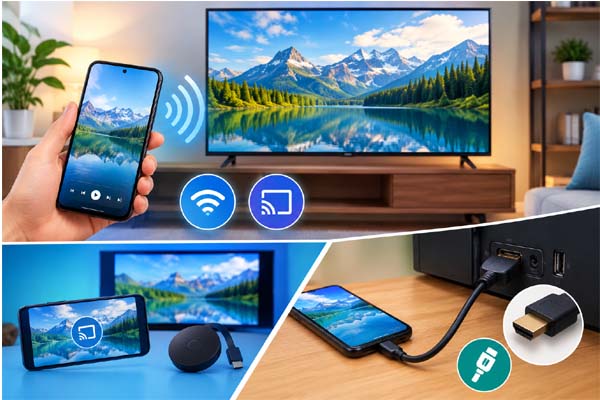
You can connect a smartphone to a TV in several ways, depending on your phone, television, and the features they support. Wireless options such as screen mirroring, AirPlay, Google Cast, or built-in casting are convenient when both devices support compatible technology. A wired HDMI connection can be more reliable when wireless casting is unavailable or unstable. Before buying an adapter, check the exact phone model and TV features because not every device supports every connection method.
Check What Your Phone and TV Support
Start by checking the model of both devices.
Many modern smart TVs support some form of wireless casting or screen mirroring. Android phones may work with Google Cast or manufacturer-specific casting features, while iPhones commonly use AirPlay when the television supports it or when a compatible streaming device is connected.
The menus can vary significantly between brands.
Your TV may have options called Screen Mirroring, Cast, AirPlay, Wireless Display, or something similar.
The phone may use terms such as Cast, Screen Cast, Smart View, Screen Mirroring, or AirPlay.
The important thing is to identify a compatible method before troubleshooting.
If your TV is older and does not have smart features, a compatible streaming device or wired connection may be required.
| Method | Best For | Main Requirement |
| AirPlay | iPhone and compatible TVs | AirPlay-compatible TV or device |
| Google Cast | Android and supported apps | Google Cast-compatible TV/device |
| Screen mirroring | Showing the phone screen | Compatible phone and TV |
| HDMI adapter | Reliable wired connection | Compatible adapter and HDMI port |
| Streaming device | Older TVs | Compatible streaming device |
Connect Wirelessly
Wireless connections are usually the easiest when your devices support them.
First, connect your phone and TV to the same Wi-Fi network when the method requires it.
On an iPhone, open Control Center and look for Screen Mirroring or AirPlay-related options. Select your compatible TV or device and follow any instructions shown on the screen.
On Android, the exact process depends on the phone manufacturer and software version. Look in quick settings or display-related settings for a Cast, Smart View, Screen Cast, or similar option.
Some apps also include their own casting button. This can be preferable to mirroring the entire phone because the TV receives the supported content while you continue using the phone.
If the TV does not appear, confirm that both devices are connected to the same network and that the TV’s relevant feature is enabled.
Use an HDMI Connection When Wireless Is Unreliable
A wired connection can be useful when wireless casting is unavailable, unstable, or unsuitable for what you want to display.
Many TVs have HDMI ports. However, phones usually do not have a full-size HDMI port, so an adapter may be required.
The exact adapter depends on the phone.
Some devices use USB-C, while older phones may use other connectors. Not every USB-C phone supports video output, so you should check the manufacturer’s specifications before buying an adapter.
Once you have compatible equipment, connect the adapter to the phone, connect an HDMI cable between the adapter and TV, and select the correct HDMI input on the television.
A wired connection can be particularly useful for presentations, certain games, or situations where a stable display is more important than convenience.
Fix Common Connection Problems
If your phone cannot find the TV, start with the basics.
Check that both devices are powered on and connected to the expected network. Restarting the phone and TV can also resolve temporary connection problems.
Make sure the TV’s casting or mirroring feature is enabled.
If wireless video keeps buffering, check the Wi-Fi connection. Distance from the router, network congestion, interference, and a weak signal can all affect streaming.
If an HDMI adapter does not work, confirm that the adapter is compatible with your phone and supports video output. Also check the TV’s selected HDMI input.
Software updates can matter too. Keep the phone and TV software reasonably up to date when possible.
Avoid buying an inexpensive adapter solely because it has the correct connector. Physical connector compatibility does not guarantee video compatibility.
Choose the Best Method for Your Needs
There is no single best way to connect every phone to every TV.
Wireless casting is convenient for watching supported content without cables. Full screen mirroring is useful when you need to show something directly from your phone. HDMI is useful when you want a physical connection and compatible hardware is available.
For occasional use, wireless casting may be the simplest option. For frequent presentations or situations where reliability is especially important, a wired setup may be preferable.
Before purchasing anything, check your exact phone model, TV model, available ports, and supported standards.
Conclusion
Connecting a phone to a TV can be simple once you know which technology your devices support. Start with wireless casting or screen mirroring if available, and use a compatible HDMI adapter when a wired connection makes more sense. Checking compatibility before buying accessories can save money and frustration.
Protect your accounts with two-factor authentication and reduce the risk of unauthorized access.
FAQs
Can every phone connect wirelessly to a smart TV?
No. Compatibility depends on the phone, TV, operating system, and supported casting or mirroring technology.
Can I connect my phone to a TV with HDMI?
Some phones support video output through a compatible adapter, but not every phone supports HDMI video output.
Why can’t my phone find my TV?
Check the network connection, make sure the TV’s casting feature is enabled, and restart both devices if necessary.
Do my phone and TV need the same Wi-Fi network?
Many wireless casting methods require both devices to be on the same network, although the exact requirement depends on the technology being used.
