

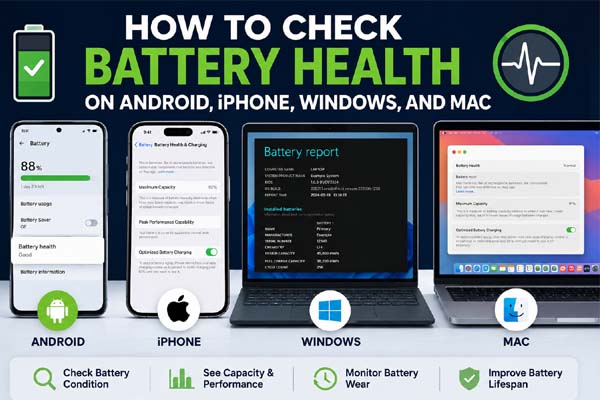
If you want to know whether your device’s battery is still in good condition, you can check its battery health using built-in tools. On iPhone and Mac, battery health is available in Settings. On Windows laptops, you can generate a battery report with a built-in command. On Android, battery health depends on your phone manufacturer—some devices include it in Settings, while others do not. Checking battery health takes only a few minutes and can help you decide if your battery needs replacing.
Why Checking Battery Health Is Important
Battery health measures how much of your battery’s original capacity remains. As lithium-ion batteries age, they naturally hold less charge, which can lead to shorter battery life and, eventually, reduced performance.
Checking battery health can help you:
- Understand why your battery drains quickly.
- Decide whether a battery replacement is needed.
- Monitor battery wear over time.
- Get the best performance from your device.
| Device | Built-in Battery Health | How to Check | Time Needed |
| Android | Available on some devices | Settings or manufacturer diagnostics | 1–2 minutes |
| iPhone | Yes | Settings | Less than 1 minute |
| Windows Laptop | Battery Report | Command Prompt or Windows Terminal | 2–3 minutes |
| Mac | Yes | System Settings | Less than 1 minute |
Check Battery Health on Android
Unlike iPhone, Android does not have one standard battery health screen. The available options depend on your phone manufacturer and Android version.
Here are the easiest ways to check:
- Open Settings.
- Tap Battery.
- Look for Battery Health, Battery Information, or Device Care, if available.
Some manufacturers include battery health information, while others only display battery usage.
If you can’t find a battery health option:
- Open your phone manufacturer’s support or diagnostics app, if one is installed.
- Install the latest Android updates, as newer software versions may add battery-related features.
- If your battery drains unusually fast or the phone shuts down unexpectedly, the battery may have worn out even if no health percentage is available.
View Battery Health on iPhone
Apple includes battery health information on supported iPhones.
To check it:
- Open Settings.
- Tap Battery.
- Select Battery Health & Charging.
You’ll see:
- Maximum Capacity – The battery’s current capacity compared to when it was new.
- Peak Performance Capability – Indicates whether the battery can support normal performance.
As a general guide:
- 90–100%: Battery is in excellent condition.
- 80–89%: Normal wear after extended use.
- Below 80%: Apple recommends considering a battery replacement because battery life and performance may be noticeably reduced.
Check Battery Health on Windows and Mac
Windows
Windows doesn’t display battery health directly in Settings, but it can generate a detailed battery report.
Steps:
- Open Command Prompt or Windows Terminal.
- Type:
powercfg /batteryreport
- Press Enter.
- Windows will save a file named battery-report.html and display its location.
- Open the report in your web browser.
Look for these sections:
- Design Capacity – The battery’s original capacity.
- Full Charge Capacity – The amount the battery can currently hold.
- Recent Usage and Battery Usage – Helpful for identifying abnormal battery drain.
If the full charge capacity is significantly lower than the design capacity, your battery has experienced normal wear.
Mac
Mac makes checking battery health simple.
- Open System Settings.
- Select Battery.
- Click the Info (ⓘ) button or Battery Health, depending on your macOS version.
You’ll see your battery’s condition, such as:
- Normal
- Service Recommended
Many Mac models also display the battery’s maximum capacity percentage, giving you a clearer picture of overall battery health.
Tips to Extend Battery Life
Although every rechargeable battery wears out over time, these habits can help slow the aging process:
- Keep your device away from excessive heat.
- Install operating system updates regularly.
- Use reliable chargers and cables.
- Avoid leaving your battery at 0% or 100% for extended periods.
- Charge your device whenever it’s convenient instead of waiting for it to fully discharge. Modern lithium-ion batteries handle partial charging well.
- Reduce screen brightness and close unnecessary background apps if your battery drains faster than expected.
These simple habits can help maintain better battery performance over the long term.
Conclusion
Checking battery health is one of the easiest ways to understand your device’s battery condition. iPhones and Macs include built-in battery health tools, Windows laptops provide a detailed battery report, and many Android phones offer battery health information through Settings or manufacturer diagnostics. By checking your battery health regularly and following good charging habits, you can extend your battery’s lifespan and know when it’s time for a replacement.
Protect your privacy by checking which apps are accessing your camera or microphone and revoke unnecessary permissions.
FAQs
Can every Android phone show battery health?
No. Battery health information depends on the phone manufacturer and Android version. Some devices include it in Settings, while others only provide battery usage details.
What is considered a good battery health percentage?
A battery health of 90% or higher is generally considered excellent. Around 80% is normal after years of use, while a value below 80% often indicates it’s time to consider replacing the battery.
How often should I check battery health?
For most people, checking every few months is enough. You should also check it if you notice rapid battery drain, unexpected shutdowns, or significantly shorter battery life.
Does charging overnight damage the battery?
Modern smartphones and laptops include charging management features that reduce battery wear once the battery is full. Occasional overnight charging is generally safe, but avoiding excessive heat and using quality chargers can help preserve battery health over time.
